Showing posts with label Programing. Show all posts

Thursday, January 19, 2023

NET. MAUI LOGIN SHELL APPS NAVIGATION

kali ini saya akan memberikan source code untuk membuat navigasi login net. maui, langsungsaja, berikut tampilan login:
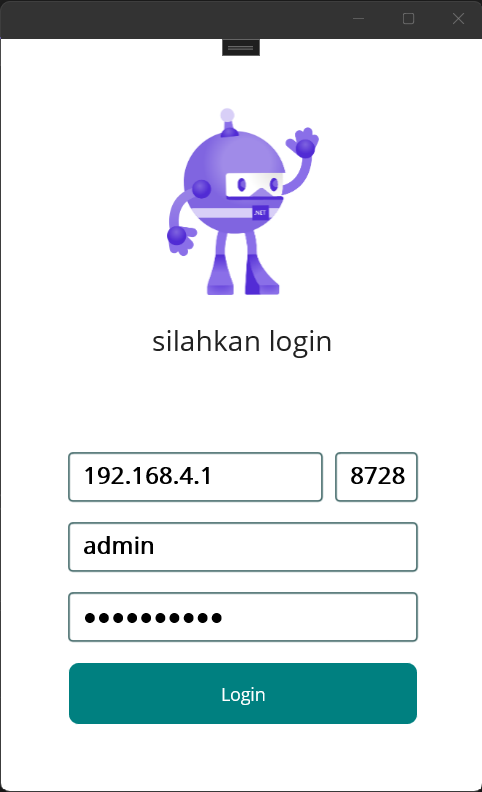

 
berikut tampilan setelah login

berikut tampilan dashboard
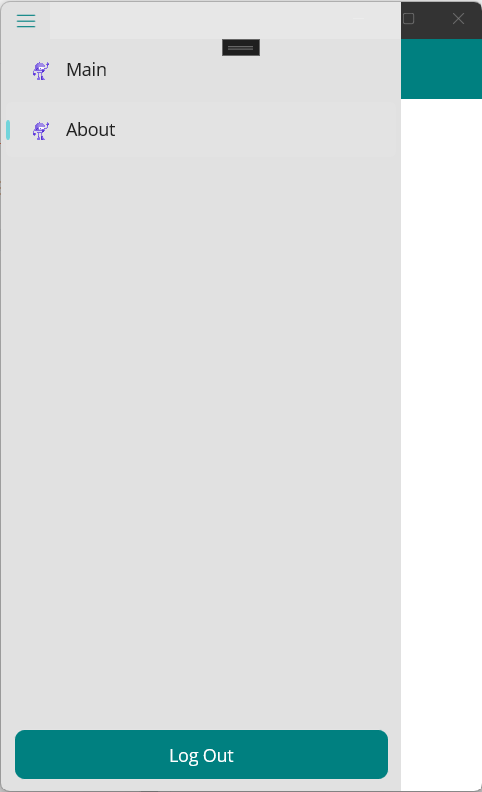
berikut tampilan navigasi.

untuk source codenya sebagai berikut;
file App.xaml

<?xml version = "1.0" encoding = "UTF-8" ?>
<Application xmlns="http://schemas.microsoft.com/dotnet/2021/maui"
             xmlns:x="http://schemas.microsoft.com/winfx/2009/xaml"
             xmlns:local="clr-namespace:My_Template"
             x:Class="My_Template.App" UserAppTheme="Light">
    <Application.Resources>
        <ResourceDictionary>
            <ResourceDictionary.MergedDictionaries>
                <ResourceDictionary Source="Resources/Styles/Colors.xaml" />
                <ResourceDictionary Source="Resources/Styles/Styles.xaml" />
            </ResourceDictionary.MergedDictionaries>
        </ResourceDictionary>
    </Application.Resources>
</Application>

file App.xaml.cs

namespace My_Template;
#if WINDOWS
using Microsoft.UI;
using Microsoft.UI.Windowing;
using Windows.Graphics;
#endif
public partial class App : Application
{
    const int WindowWidth = 500;
    const int WindowHeight = 800;
    public App()
	{
		InitializeComponent();
        Microsoft.Maui.Handlers.WindowHandler.Mapper.AppendToMapping(nameof(IWindow), (handler, view) =>
        {
#if WINDOWS
            var mauiWindow = handler.VirtualView;
            var nativeWindow = handler.PlatformView;
            nativeWindow.Activate();
            IntPtr windowHandle = WinRT.Interop.WindowNative.GetWindowHandle(nativeWindow);
            WindowId windowId = Microsoft.UI.Win32Interop.GetWindowIdFromWindow(windowHandle);
            AppWindow appWindow = Microsoft.UI.Windowing.AppWindow.GetFromWindowId(windowId);
            appWindow.Resize(new SizeInt32(WindowWidth, WindowHeight));
#endif
        });
        MainPage = new AppShell();
	}
}
file AppShell.xaml

<?xml version="1.0" encoding="UTF-8" ?>
<Shell
    x:Class="My_Template.AppShell"
    xmlns="http://schemas.microsoft.com/dotnet/2021/maui"
    xmlns:x="http://schemas.microsoft.com/winfx/2009/xaml"
    xmlns:local="clr-namespace:My_Template"
    Shell.FlyoutBehavior="Disabled" >

    <Shell.TabBarIsVisible>false</Shell.TabBarIsVisible>
    <Shell.FlyoutBackgroundColor>#E1E1E1</Shell.FlyoutBackgroundColor>
    <ShellContent
        Title="Login"     
        Shell.FlyoutItemIsVisible="False"   
        ContentTemplate="{DataTemplate local:LoginPage}"
        Route="LoginPage" />

    <FlyoutItem 
        Title="App" 
        Route="App" 
        FlyoutDisplayOptions="AsMultipleItems">

        <ShellContent
            Title="Main"
            Icon="dotnet_bot.png"
            ContentTemplate="{DataTemplate local:MainPage}"
            Route="MainPage" />

        <ShellContent
            Title="About"
            Icon="dotnet_bot.png"
            ContentTemplate="{DataTemplate local:AboutPage}"
            Route="AboutPage" />

    </FlyoutItem>
    <Shell.FlyoutFooter>
        <StackLayout Padding="10,10,10,10">
            <Button Text="Log Out" Clicked="Logout_Click"/>
        </StackLayout>
        
    </Shell.FlyoutFooter>
</Shell>


file AppShell.xaml.cs

namespace My_Template;

public partial class AppShell : Shell
{
	public AppShell()
	{
		InitializeComponent();
	}

    private void Logout_Click(object sender, EventArgs e)
    {
        Shell.Current.FlyoutBehavior = FlyoutBehavior.Disabled;
        Shell.Current.GoToAsync("//LoginPage");
    }
}
file LoginPage.xaml

<?xml version="1.0" encoding="utf-8" ?>
<ContentPage xmlns="http://schemas.microsoft.com/dotnet/2021/maui"
             xmlns:x="http://schemas.microsoft.com/winfx/2009/xaml"
             x:Class="My_Template.LoginPage"
             Title="LoginPage">
    <Shell.TabBarIsVisible>false</Shell.TabBarIsVisible>
    <Shell.NavBarIsVisible>false</Shell.NavBarIsVisible>
    <Shell.FlyoutBehavior>Disabled</Shell.FlyoutBehavior>

    <ScrollView>

        <VerticalStackLayout
                Spacing="15"
                Padding="10,10,10,10" Margin="10,10,10,10" WidthRequest="300"
                VerticalOptions="Center">

            <StackLayout Padding="0,0,0,40">
                <Image
                    Source="dotnet_bot.png"
                    SemanticProperties.Description="Cute dot net bot waving hi to you!"
                    HeightRequest="150"
                    HorizontalOptions="Center" />
                <Label Text="silahkan login" HorizontalOptions="Center" Padding="0,20,0,20" FontSize="Medium"/>
            </StackLayout>

            <Grid>
                <Grid.ColumnDefinitions>
                    <ColumnDefinition Width="*" />
                    <ColumnDefinition Width="Auto" />

                </Grid.ColumnDefinitions>
                <Border Stroke="#003434"
                    StrokeThickness="1"
                    StrokeShape="RoundRectangle 3,3,3,3"
>
                    <Entry  Placeholder="IP" Text="192.168.4.1" FontSize="Small" FontAttributes="Bold"/>

                </Border>

                <Border Stroke="#003434" StrokeThickness="1" StrokeShape="RoundRectangle 3,3,3,3" Grid.Column="1" Margin="10,0,0,0" >
                    <Entry  Placeholder="Port" Text="8728" VerticalTextAlignment="Center" Keyboard="Numeric" FontSize="Small" FontAttributes="Bold"/>
                </Border>

            </Grid>
            <Border Stroke="#003434"
                    StrokeThickness="1"
                    StrokeShape="RoundRectangle 3,3,3,3"
                    Padding="0,0,0,0">
                <Entry  Placeholder="Username" Text="admin" FontSize="Small" FontAttributes="Bold"/>
            </Border>
            <Border Stroke="#003434"
                    StrokeThickness="1"
                    StrokeShape="RoundRectangle 3,3,3,3"
                    Padding="0,0,0,0">
                <Entry  Placeholder="Password" Text="abumusa123" IsPassword="True" FontSize="Small" FontAttributes="Bold"/>
            </Border>
            <Button Text="Login" Clicked="Login_Click" HeightRequest="50"/>

        </VerticalStackLayout>

    </ScrollView>
</ContentPage>

file LoginPage.xaml.cs

namespace My_Template;

public partial class LoginPage : ContentPage
{
	public LoginPage()
	{
		InitializeComponent();
	}

    private void Login_Click(object sender, EventArgs e)
    {
        Shell.Current.FlyoutBehavior = FlyoutBehavior.Flyout;
        Shell.Current.GoToAsync("//App/MainPage");
    }
}

 file MainPage.xaml


<?xml version="1.0" encoding="utf-8" ?>
<ContentPage xmlns="http://schemas.microsoft.com/dotnet/2021/maui"
             xmlns:x="http://schemas.microsoft.com/winfx/2009/xaml"
             x:Class="My_Template.MainPage">

    <ScrollView>
        <VerticalStackLayout
            Spacing="25"
            Padding="30,0"
            VerticalOptions="Center">

            <Image
                Source="dotnet_bot.png"
                SemanticProperties.Description="Cute dot net bot waving hi to you!"
                HeightRequest="200"
                HorizontalOptions="Center" />

            <Label
                Text="Hello, World!"
                SemanticProperties.HeadingLevel="Level1"
                FontSize="32"
                HorizontalOptions="Center" />

            <Label
                Text="Welcome to .NET Multi-platform App UI"
                SemanticProperties.HeadingLevel="Level2"
                SemanticProperties.Description="Welcome to dot net Multi platform App U I"
                FontSize="18"
                HorizontalOptions="Center" />

            <Button
                x:Name="CounterBtn"
                Text="Click me"
                SemanticProperties.Hint="Counts the number of times you click"
                Clicked="OnCounterClicked"
                HorizontalOptions="Center" />

        </VerticalStackLayout>
    </ScrollView>

</ContentPage>

 
file MainPage.xaml.cs

namespace My_Template;

public partial class MainPage : ContentPage
{
	int count = 0;

	public MainPage()
	{
		InitializeComponent();
	}

	private void OnCounterClicked(object sender, EventArgs e)
	{
		count++;

		if (count == 1)
			CounterBtn.Text = $"Clicked {count} time";
		else
			CounterBtn.Text = $"Clicked {count} times";

		SemanticScreenReader.Announce(CounterBtn.Text);
	}
}


 file AboutPage.xaml


<?xml version="1.0" encoding="utf-8" ?>
<ContentPage xmlns="http://schemas.microsoft.com/dotnet/2021/maui"
             xmlns:x="http://schemas.microsoft.com/winfx/2009/xaml"
             x:Class="My_Template.AboutPage"
             Title="AboutPage">
    <VerticalStackLayout>
        <Label 
            Text="Welcome to .NET MAUI!"
            VerticalOptions="Center" 
            HorizontalOptions="Center" />
    </VerticalStackLayout>
</ContentPage>

file AboutPage.xaml.cs

namespace My_Template;

public partial class AboutPage : ContentPage
{
	public AboutPage()
	{
		InitializeComponent();
	}
}


jalankan f5


Monday, May 23, 2022

Kivy - KivyMD Login App Dahsboard Example

berikut ini tampilan source code membangun aplikasi multi platform menggunakan bahasa pemrograman python dan framework kivy + kivymd


perintahnya adalah sebagai berikut:

from kivymd.app import MDApp

from kivy.lang import Builder

from kivy.uix.screenmanager import ScreenManager, Screen

from kivy.clock import Clock

from kivy.core.window import Window

from kivymd.uix.list import MDList, OneLineListItem


Window.size = (400, 700)

tampilan_awal = '''

MainScreen:

    SplashScreen:

    LoginScreen:


<SplashScreen>:

    name: 'splashscreen'

    BoxLayout:

        orientation: 'vertical'

        MDLabel:

            id: judul

            text: 'Aplikasi Login'

            font_size: '40'

            markup: True

            halign: 'center'


<LoginScreen>:

    name: 'loginscreen'

    BoxLayout:

        orientation: 'vertical'

        padding: '10dp'

        spacing: '10dp'

        pos_hint: {'center_y':0.5}

        adaptive_height: True

        MDLabel:

            text: 'Login'

            font_size: '52'

            halign: 'center'

        MDTextField

            id: username

            hint_text: "Username"

            text: "user"

        MDTextField

            id: password

            hint_text: "Password"

            password:True

            text:"kosong"

        MDRectangleFlatButton:

            id:btnConnect

            text: "LOG IN"

            font_size: 18

            pos_hint: {"center_x": 0.5}

            on_press: root.proses_login()

        Widget:

    Widget:


'''


class MainScreen(ScreenManager):

    pass


class SplashScreen(Screen):

    pass


class LoginScreen(Screen):

    def proses_login(self):

        myApp = MDApp.get_running_app()

        try:

            myApp.window_manager.add_widget(AppScreen(name='appscreen'))

            myApp.ganti_layar('appscreen','down') 

        except:

            pass


AppScreen_kv = Builder.load_string('''

<AppScreen>:

    name: 'appscreen'

    BoxLayout:

        orientation: 'vertical'

        MDToolbar:

            id: toolbar

            pos_hint: {"top": 1}

            elevation: 10

            title: "Router Management"

            left_action_items: [["menu", lambda x: nav_draw.set_state()]]

        BoxLayout:

            orientation: 'vertical'


            MDNavigationLayout:

                x: toolbar.height

                ScreenManager:

                    id: app_screen_manager


                MDNavigationDrawer:

                    id: nav_draw

                    orientation: "vertical"

                    padding: "4dp"

                    spacing: "4dp"


                    ScrollView:

                        MDList:

                            id:app_menu


                    Widget:

''')


class AppScreen(Screen):

    def __init__(self, **kwargs):

        super().__init__(**kwargs)

        Clock.schedule_once(self.buatMenuLayar)


    def buatMenuLayar(self, *args):

        listLayar = [DashboardScreen(name="Dashboard")]

        for i in range(len(listLayar)):

            self.ids.toolbar.title = listLayar[i].name

            self.ids.app_screen_manager.add_widget(listLayar[i])   

            self.ids.app_menu.add_widget(OneLineListItem(text=listLayar[i].name,on_press=self.gantiScreen))

        self.ids.app_menu.add_widget(OneLineListItem(text="Log Out",on_press=self.logOut))


    def gantiScreen(self, instance):

        self.ids.toolbar.title=instance.text

        self.ids.nav_draw.set_state("close")

        self.ids.app_screen_manager.current = instance.text


    def logOut(self, instance):

        myApp = MDApp.get_running_app()

        myApp.ganti_layar('loginscreen','up')

        self.ids.nav_draw.set_state("close")


    def build(self):

        self.root_layout = FloatLayout()

        self.root_layout.add_widget(AppScreen_kv)

        return self.root_layout


dashboard_kv = Builder.load_string('''

<DashboardScreen>:

    name: 'dashboardscreen'

    MDBoxLayout:

        spacing: "5dp"

        padding: "10dp"

        pos_hint: {"center_x": .5, "center_y": .5}

        orientation: 'vertical'

        GridLayout:

            cols: 2

            rows: 3

            spacing:'5dp'

            MDCard:

                size_hint: 0.3, 0.3

                orientation: 'vertical'

                padding: '15dp'

                spacing: '15dp'

                md_bg_color: [0.121, .227, 0.576, 0.7]

                radius: [16, ]

                MDLabel:

                    id: jumlahuserdhcp

                    text: "0"

                    theme_text_color: "Custom"

                    text_color: 1, 1, 1, 1

                    font_style: 'H3'

                    halign: 'center'

                MDLabel:

                    id: keteranganuserdhcp

                    text: 'User DHCP'

                    theme_text_color: "Custom"

                    text_color: 1, 1, 1, 1

                    font_style: 'Subtitle2'

                    halign: 'center'

            MDCard:

                size_hint: 0.3, 0.3

                orientation: 'vertical'

                padding: '15dp'

                spacing: '15dp'

                md_bg_color: [0.121, .227, 0.576, 0.7]

                radius: [16, ]

                MDLabel:

                    id: jumlahuserpppoe

                    text: "0"

                    theme_text_color: "Custom"

                    text_color: 1, 1, 1, 1

                    font_style: 'H3'

                    halign: 'center'

                MDLabel:

                    id: keteranganuserpppoe

                    text: 'User PPPOE'

                    theme_text_color: "Custom"

                    text_color: 1, 1, 1, 1

                    font_style: 'Subtitle2'

                    halign: 'center'


            MDCard:

                size_hint: 0.3, 0.3

                orientation: 'vertical'

                padding: '15dp'

                spacing: '15dp'

                md_bg_color: [0.121, .227, 0.576, 0.7]

                radius: [16, ]

                MDLabel:

                    id: jumlahuserhospot

                    text: "0"

                    theme_text_color: "Custom"

                    text_color: 1, 1, 1, 1

                    font_style: 'H3'

                    halign: 'center'

                MDLabel:

                    id: keteranganuserhospot

                    text: 'User Hotspot'

                    theme_text_color: "Custom"

                    text_color: 1, 1, 1, 1

                    font_style: 'Subtitle2'

                    halign: 'center'

''')


class DashboardScreen(Screen):

    def on_enter(self):

        print('Halaman Dashboard')


    def build(self):

        self.root_layout = FloatLayout()

        self.root_layout.add_widget(dashboard_kv)

        return self.root_layout


class MainApp(MDApp):

    def build(self):

        self.window_manager = Builder.load_string(tampilan_awal)

        Clock.schedule_once(lambda dt: self.ganti_layar('loginscreen'), 3)

        return self.window_manager


    def ganti_layar(self,namascreen,arah='down'):

        self.window_manager.transition.direction = arah

        self.window_manager.current = namascreen


if __name__ == '__main__':

    MainApp().run()


Tuesday, February 1, 2022

Flutter Bottom Navigation Bar Cupertino APP


import 'package:flutter/cupertino.dart';

void main() {
  runApp(MyApp());
}

class MyApp extends StatelessWidget {
  @override
  Widget build(BuildContext context) {
    return CupertinoApp(
      debugShowCheckedModeBanner: false,
      title: 'PPS IAI AL-QOLAM',
      home: MyHomePage(),
    );
  }
}

class MyHomePage extends StatelessWidget {
  void _show(BuildContext ctx, {String judul = "pilihan"}) {
    showCupertinoModalPopup(
        context: ctx,
        builder: (_) => CupertinoActionSheet(
              title: customText("Menu $judul"),
              message: Text('Silahkan pilih menu $judul dibawah ini!'),
              actions: [
                CupertinoActionSheetAction(
                    onPressed: () {
                      _close(ctx);
                      _showSub(ctx,judul: "sub pertama");
                    },
                    child: const Text('Pilihan 1')),
                CupertinoActionSheetAction(
                    onPressed: () {}, child: const Text('Pilihan 2')),
                CupertinoActionSheetAction(
                    onPressed: () {}, child: const Text('Pilihan 3')),
                CupertinoActionSheetAction(
                    onPressed: () {}, child: const Text('Pilihan 4')),
              ],
              cancelButton: CupertinoActionSheetAction(
                onPressed: () => _close(ctx),
                child: const Text('Tutup'),
              ),
            ));
  }

  void _showSub(BuildContext ctx, {String judul = "pilihan"}) {
    showCupertinoModalPopup(
        context: ctx,
        builder: (_) => CupertinoActionSheet(
              title: customText("Menu $judul"),
              message: Text('Silahkan pilih menu $judul dibawah ini!'),
              actions: [
                CupertinoActionSheetAction(
                    onPressed: () {}, child: const Text('Option #1')),
                CupertinoActionSheetAction(
                    onPressed: () {}, child: const Text('Option #2')),
                CupertinoActionSheetAction(
                    onPressed: () {}, child: const Text('Option #3')),
                CupertinoActionSheetAction(
                    onPressed: () {}, child: const Text('Option #4')),
              ],
              cancelButton: CupertinoActionSheetAction(
                onPressed: () => _close(ctx),
                child: const Text('Tutup'),
              ),
            ));
  }

  void _close(BuildContext ctx) {
    Navigator.of(ctx).pop();
  }

  @override
  Widget build(BuildContext context) {
    return CupertinoTabScaffold(
        tabBar: CupertinoTabBar(
          backgroundColor: CupertinoColors.darkBackgroundGray,
          activeColor: CupertinoColors.activeBlue,
          inactiveColor: CupertinoColors.activeBlue,
          items: [
            BottomNavigationBarItem(
              icon: CupertinoButton(
                  child: customText("Home", isbool: false, ukuran: 16),
                  onPressed: () {
                    print("home");
                  }),
            ),
            BottomNavigationBarItem(
              icon: CupertinoButton(
                child: customText("Dosen", isbool: false, ukuran: 16),
                onPressed: () => _show(context, judul: "dosen"),
              ),
            ),
          ],
        ),
        tabBuilder: (context, index) {
          return CupertinoPageScaffold(
              backgroundColor: CupertinoColors.lightBackgroundGray,
              navigationBar: const CupertinoNavigationBar(
                brightness: Brightness.light,
                middle: Text('PPS IAI AL-QOLAM'),
              ),
              child: Center(
                child: Column(
                  children: [
                    CupertinoButton(
                      child: const Text('Open Action Sheet'),
                      onPressed: () => _show(context),
                    ),
                  ],
                ),
              ));
        });
  }

  Widget customText(String kata,
      {bool isbool = true,
      double ukuran = 18,
      Color? warna = CupertinoColors.darkBackgroundGray}) {
    return Text(kata,
        style: TextStyle(
            color: warna != null ? CupertinoColors.lightBackgroundGray : warna,
            fontWeight: isbool ? FontWeight.bold : FontWeight.w100,
            fontSize: ukuran));
  }
}

Flutter Custom Bottom Navigation Bar With Popup


import 'package:flutter/material.dart';

void main() {
  runApp(MyApp());
}

class MyApp extends StatelessWidget {
  @override
  Widget build(BuildContext context) {
    return MaterialApp(
      theme: ThemeData(
        primarySwatch: Colors.blueGrey,
      ),
      debugShowCheckedModeBanner: false,
      home: AplikasiNavBar(),
    );
  }
}

class AplikasiNavBar extends StatefulWidget {
  @override
  _AplikasiNavBarState createState() => _AplikasiNavBarState();
}

class _AplikasiNavBarState extends State<AplikasiNavBar> {
  @override
  Widget build(BuildContext context) {
    return Scaffold(
        appBar: AppBar(
          title: const Text("Bottom Navigasi"),
        ),
        body: const Center(
          child: Text("Tab Index yang aktif", style: TextStyle(fontSize: 16)),
        ),
        bottomNavigationBar: BottomAppBar(
            child: Container(
          height: 50,
          margin: const EdgeInsets.only(left: 20.0, right: 20.0),
          child: Row(
            mainAxisSize: MainAxisSize.max,
            mainAxisAlignment: MainAxisAlignment.spaceEvenly,
            children: <Widget>[
              TextButton(
                onPressed: () {
                  print("home");
                },
                child: customText("home"),
              ),
              PopupMenuButton(
                child:  customText("dosen"),
                onSelected: (value) {
                  print(value);
                },
                itemBuilder: (context) => [
                  const PopupMenuItem(
                    child: Text("youtube"),
                    value: "yutub",
                  ),
                  const PopupMenuItem(
                    child: Text("blogger"),
                    value: "blogger",
                  ),
                ],
              ),
              TextButton(
                onPressed: () {
                  print("mahasiswa");
                },
                child: customText("mahasiswa"),
              ),
              PopupMenuButton(
                child: customText("lain-lain"),
                onSelected: (value) {
                  print(value);
                },
                itemBuilder: (context) => [
                  const PopupMenuItem(
                    child: ListTile(title:Text("bing"), leading: Icon(Icons.vibration )),
                    value: "bing",
                  ),
                  PopupMenuItem(
                    child: PopupMenuButton(
                      child:  const ListTile(title:Text("lainnya"), leading: Icon(Icons.account_box_outlined)),
                      onSelected: (value) {
                        print(value);
                      },
                      itemBuilder: (context) => [
                        const PopupMenuItem(
                          child:  ListTile(title:Text("yutub"), leading: Icon(Icons.video_library_outlined)),
                          value: "yutub",
                        ),
                        const PopupMenuItem(
                          child: Text("blogger"),
                          value: "blogger",
                        ),
                      ],
                    ),
                  ),
                ],
              ),
            ],
          ),
        )));
  }

  Widget customText(String kata,{bool isbool=true,double ukuran=18,Color? warna=Colors.teal}) {
    return Text(kata,
        style: TextStyle(
            color: warna!=null? Theme.of(context).primaryColor:warna,
            fontWeight: isbool? FontWeight.bold : FontWeight.normal,
            fontSize: ukuran));
  }
}

Thursday, July 15, 2021

FLUTTER APP DRAWER THEME | DYNAMIC & STATIC LISTTILE

kali ini abang akan membagikan skrip membuat thema warna app drawer otomatis, berikut ini penampakannya


cara ganti warnanya seperti gambar berikut ini;


berikut ini skripnya:

import 'package:flutter/material.dart';

class ItemDrawer {
  String title;
  IconData icon;
  bool enable;
  Widget tampilan;
  ItemDrawer(this.title, this.icon, this.enable, this.tampilan);
}

void main() {
  runApp(MaterialApp(
    title: "Navigation Drawer",
    debugShowCheckedModeBanner: false,
    theme: new ThemeData(
      primarySwatch: Colors.red,
    ),
    home: Dashboard(),
  ));
}

class Dashboard extends StatefulWidget {
  final drawerItems = [
    new ItemDrawer("Dashboard"Icons.rss_feed, trueText('hallow')),
    new ItemDrawer("Pesan"Icons.add, trueText('tambah')),
    new ItemDrawer("Contoh"Icons.list, falseText('daftar')),
    new ItemDrawer("Datanya"Icons.list, trueText('daftar')),
  ];

  @override
  DashboardState createState() {
    return DashboardState();
  }
}

class DashboardState extends State<Dashboard> {
  int _selectedDrawerIndex = 0;
  _getDrawerItemWidget(int pos) {
    return Center(child: widget.drawerItems[pos].tampilan);
  }

  _onSelectItem(int index) {
    setState(() => _selectedDrawerIndex = index);
    Navigator.of(context).pop();
  }

  @override
  Widget build(BuildContext context) {
    var drawerOptions = <Widget>[];
    for (var i = 0; i < widget.drawerItems.length; i++) {
      var d = widget.drawerItems[i];
      drawerOptions.add(customListile(
          judul: d.title,
          ikon: d.icon,
          indexMenu: i,
          aktif: d.enable,
          aksi: () => _onSelectItem(i)));
    }

    drawerOptions.add(customListile(
        judul: 'Tutup',
        ikon: Icons.close,
        aktif: true,
        aksi: () {
          Navigator.of(context).pop();
        }));

    return new Scaffold(
      appBar: new AppBar(
        title: new Text(widget.drawerItems[_selectedDrawerIndex].title),
      ),
      drawer: new Drawer(
        child: new Column(
          children: <Widget>[
            Container(
                alignment: Alignment.centerLeft,
                height: 100,
                color: Theme.of(context).primaryColor,
                child: ListTile(
                  leading: SizedBox(
                      height: 50.0,
                      width: 50.0,
                      child: CircleAvatar(
                        radius: 40,
                        backgroundColor: Theme.of(context).primaryColorLight,
                        child: const CircleAvatar(
                          radius: 20,
                          child: FlutterLogo(), //gambar app
                        ),
                      )),
                  title: Text(
                    'Aplikasi keren',
                    style: TextStyle(
                        color: Theme.of(context).cardColor,
                        fontSize: 20,
                        fontWeight: FontWeight.w900),
                  ),
                  subtitle: Text('Buatan indonesia',
                      style: const TextStyle(
                          color: Colors.white,
                          fontSize: 12,
                          fontWeight: FontWeight.w100)),
                )),
            new Padding(
              padding: EdgeInsets.fromLTRB(102000),
              child: Column(children: drawerOptions),
            )
          ],
        ),
      ),
      body: _getDrawerItemWidget(_selectedDrawerIndex),
    );
  }

  Widget customListile(
      {String? judul,
      IconData? ikon,
      bool aktif = true,
      int? indexMenu,
      GestureTapCallback? aksi}) {
    return ListTile(
        visualDensity: VisualDensity(horizontal: -1, vertical: -1),
        shape: RoundedRectangleBorder(
            borderRadius: BorderRadius.only(
                topLeft: Radius.circular(32), bottomLeft: Radius.circular(32))),
        contentPadding: EdgeInsets.fromLTRB(5000),
        selectedTileColor: Theme.of(context).primaryColorLight,
        leading: CircleAvatar(
          backgroundColor: Theme.of(context).primaryColor,
          child: CircleAvatar(
            backgroundColor: Colors.white,
            radius: 30,
            child: Icon(
              ikon!,
              color: Theme.of(context).primaryColorDark,
            ),
          ),
        ),
        title: new Text(judul!),
        enabled: aktif,
        selected: indexMenu != null ? indexMenu == _selectedDrawerIndex : false,
        onTap: aksi);
  }
}


Wednesday, July 14, 2021

MEMBUAT WIDGET SEARCHBLE LISTVIEW | FLUTTER

kali ini abang akan memberikan script membuat widget listview yang langsung bisa di filter menggunakan fitur ValueListenableBuilder, berikut ini penampakannya:


berikut ini scriptnya:

Widget searchableUsersWidget() {
  List<Mapusers = [
    {'name''James''tel''9010'},
    {'name''Michael''tel''9011'},
    {'name''Jane''tel''9013'},
  ];
  ValueNotifier<List<Map>> filtered = ValueNotifier<List<Map>>([]);
  TextEditingController searchController = TextEditingController();
  FocusNode searchFocus = FocusNode();
  bool searching = false;
  return ValueListenableBuilder<List>(
      valueListenablefiltered,
      builder: (contextvalue_) {
        return Container(
          marginconst EdgeInsets.only(top10),
          decorationBoxDecoration(
            borderRadiusconst BorderRadius.only(
                topLeftRadius.circular(20), topRightRadius.circular(20)),
            boxShadow: [
              BoxShadow(
                colorColors.white.withOpacity(0.5),
                spreadRadius4,
                blurRadius6,
                offsetconst Offset(03), // changes position of shadow
              ),
            ],
          ),
          childColumn(
            children: [
              Container(
                marginconst EdgeInsets.all(8),
                childCard(
                  childListTile(
                    leadingconst Icon(Icons.search),
                    titleTextField(
                      controllersearchController,
                      decorationconst InputDecoration(
                          hintText'Search'borderInputBorder.none),
                      onChanged: (text) {
                        if (text.isNotEmpty) {
                          searching = true;
                          filtered.value = [];
                          for (var user in users) {
                            if (user['name']
                                    .toString()
                                    .toLowerCase()
                                    .contains(text.toLowerCase()) ||
                                user['tel'].toString().contains(text)) {
                              filtered.value.add(user);
                            }
                          }
                        } else {
                          searching = false;
                          filtered.value = [];
                        }
                      },
                    ),
                    trailingIconButton(
                      iconconst Icon(Icons.cancel),
                      onPressed: () {
                        searchController.clear();
                        searching = false;
                        filtered.value = [];
                        if (searchFocus.hasFocussearchFocus.unfocus();
                      },
                    ),
                  ),
                ),
              ),
              Expanded(
                childListView.builder(
                    itemCountsearching ? filtered.value.length : users.length,
                    itemBuilder: (contextindex) {
                      final item =
                          searching ? filtered.value[index] : users[index];
                      return ListTile(
                        titleText(item['name']),
                        subtitleText(item['tel']),
                        onTap: () {},
                      );
                    }),
              ),
            ],
          ),
        );
      });
}